 Jigar Karangiya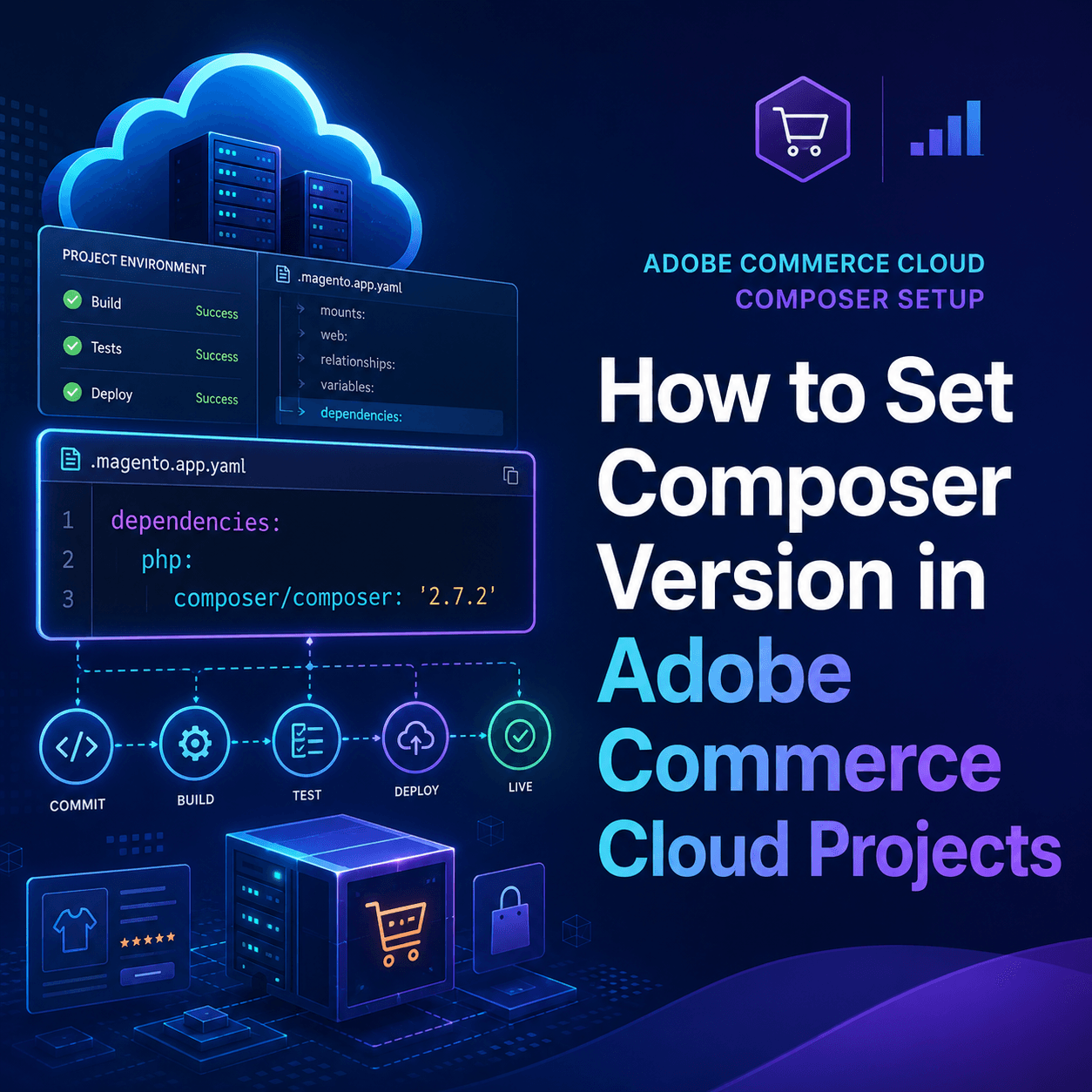
When working with Adobe Commerce Cloud , one of the most important deployment best practices is controlling your Composer version. If Composer changes unexpectedly between local, CI, and Cloud environments, you can run into dependency conflicts, failed builds, and delayed releases.
This guide explains how to set the Composer version correctly in Adobe Commerce Cloud projects and why it matters for performance, stability, and maintainability.
Why Composer Version Control Matters in Adobe Commerce Cloud
Composer is the dependency manager behind your Adobe Commerce project. Your build pipeline relies on it to install Magento packages, third-party modules, and project libraries.
If your team does not lock Composer version:
- Builds may pass locally but fail in Cloud
- Module dependency resolution can differ by environment
- Security patch updates can become harder to validate
- Upgrade projects may become unpredictable
Setting a fixed Composer version gives you repeatable builds and fewer production surprises.
Where to Configure Composer Version
In Adobe Commerce Cloud, you configure Composer in the [.magento.app.yaml](https://github.com/magento/magento-cloud/blob/master/.magento.app.yaml) file using the dependencies section.
Use this structure:
dependencies:
  php:
    composer/composer: '2.7.2'
You can use either:
- A fixed version (example:
'2.7.2') for strict reproducibility - A version constraint (example:
'^2.0') for controlled flexibility
For enterprise teams, a pinned version is usually safer in production pipelines.
Adobe Commerce Cloud Build Behavior You Should Know
Adobe documentation notes that in Composer 2.x scenarios, some projects may also require updates to build configuration, such as:
build.flavor: none- A custom build hook that explicitly runs Composer commands
This is especially important for older templates or migration cases where build behavior was originally designed for earlier Composer workflows.
Example .magento.app.yaml Pattern
A practical pattern looks like this:
build:
  flavor: none

dependencies:
  php:
    composer/composer: '^2.0'

hooks:
  build: |
    set -e
    composer --no-ansi --no-interaction install --no-progress --prefer-dist --optimize-autoloader
Always adapt to your project’s current Adobe Commerce version and deployment strategy.
Step-by-Step: Set Composer Version Safely
- Open
.magento.app.yamlin your Adobe Commerce Cloud project. - Add or update the
dependencies > php > composer/composervalue. - Review
buildandhookssettings if your project uses custom build logic. - Commit the change to your Git branch.
- Deploy to an integration/staging environment first.
- Validate install/build logs and smoke test key storefront/admin flows.
- Promote to production after verification.
Best Practices for Adobe Commerce Cloud Teams
- Keep Composer version aligned across local, CI, and Cloud
- Document the chosen version in your project README or runbook
- Revalidate Composer lock behavior before major Magento upgrades
- Test third-party module compatibility when Composer version changes
- Avoid “silent” environment upgrades without deployment testing
Common Mistakes to Avoid
- Not setting Composer version at all in
.magento.app.yaml - Updating Composer version directly in production without staging tests
- Ignoring build hook behavior after switching Composer major versions
- Assuming all Magento extensions support the same Composer release
Final Thoughts
If you want reliable deployments in Adobe Commerce Cloud , start by explicitly setting the Composer version in .magento.app.yaml. This small configuration step can prevent major release issues, improve build consistency, and reduce upgrade risk across environments.
For most teams, Composer version control is not optional,it is a core part of a healthy Adobe Commerce DevOps workflow.
You may also like,
Adobe Commerce Cloud Project Structure