 Jigar Karangiya
Running a store on Adobe Commerce Cloud (Magento Cloud) means working with multiple environments like production , staging , and integration. Each environment has limited disk space. If storage gets full, deployments may fail or the site may crash.
Luckily, Adobe provides a simple CLI command:
magento-cloud mount:sizeThis command shows the storage usage of different mounts (like var, pub/media, or tmp) in your cloud project. Let’s break it down with examples.
Syntax of the Command
magento-cloud mount:size -p <project-id> -e <environment>Example: Checking Disk Usage in Staging
Suppose you want to check the staging environment of a project with ID phoshzbzzzzvm. Run:
magento-cloud mount:size -p phoshzbzzzzvm -e stagingSample Output:
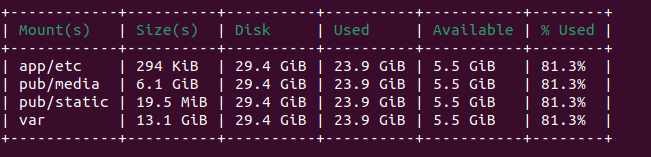
This helps you see where your storage is being consumed. For example, pub/media often grows large due to product images.
Common Use Cases
- Before Deployment – Check free space to avoid failed builds.
- Debugging Issues – Identify if logs, media, or cache are consuming too much space.
- Proactive Monitoring – Regularly check storage usage in staging/production.
Best Practices
- Run
magento-cloud mount:sizeweekly for production environments. - Clean unused logs and reports if
/varis filling up. - Use a CDN or remote storage for
pub/mediaif it grows too large. - Contact Adobe support if you need more allocated storage.
Conclusion
The magento-cloud mount:size command is a quick and reliable way to check disk usage per environment in Adobe Commerce Cloud. By using the project ID (-p) and environment (-e) flags, you can monitor storage consumption in staging, production, or integration. Regularly running this command helps prevent downtime and keeps your Magento store healthy.
FAQs
Can I runmagento-cloud mount:size without project and environment flags?
Yes, but it will use your default linked project and environment.
How do I find my project ID?
Use magento-cloud project:list to see all available project IDs.
What if I need to increase disk space?
You must request an upgrade from Adobe Commerce Cloud support.
External References
You may also like,
Backups (snapshots) in Magento Commerce Cloud
Securely render Javascript inside Magento 2 template files using…
How to Sync Magento 2 Media Files Using rsync on Adobe…
Thank You.