 Jigar Karangiya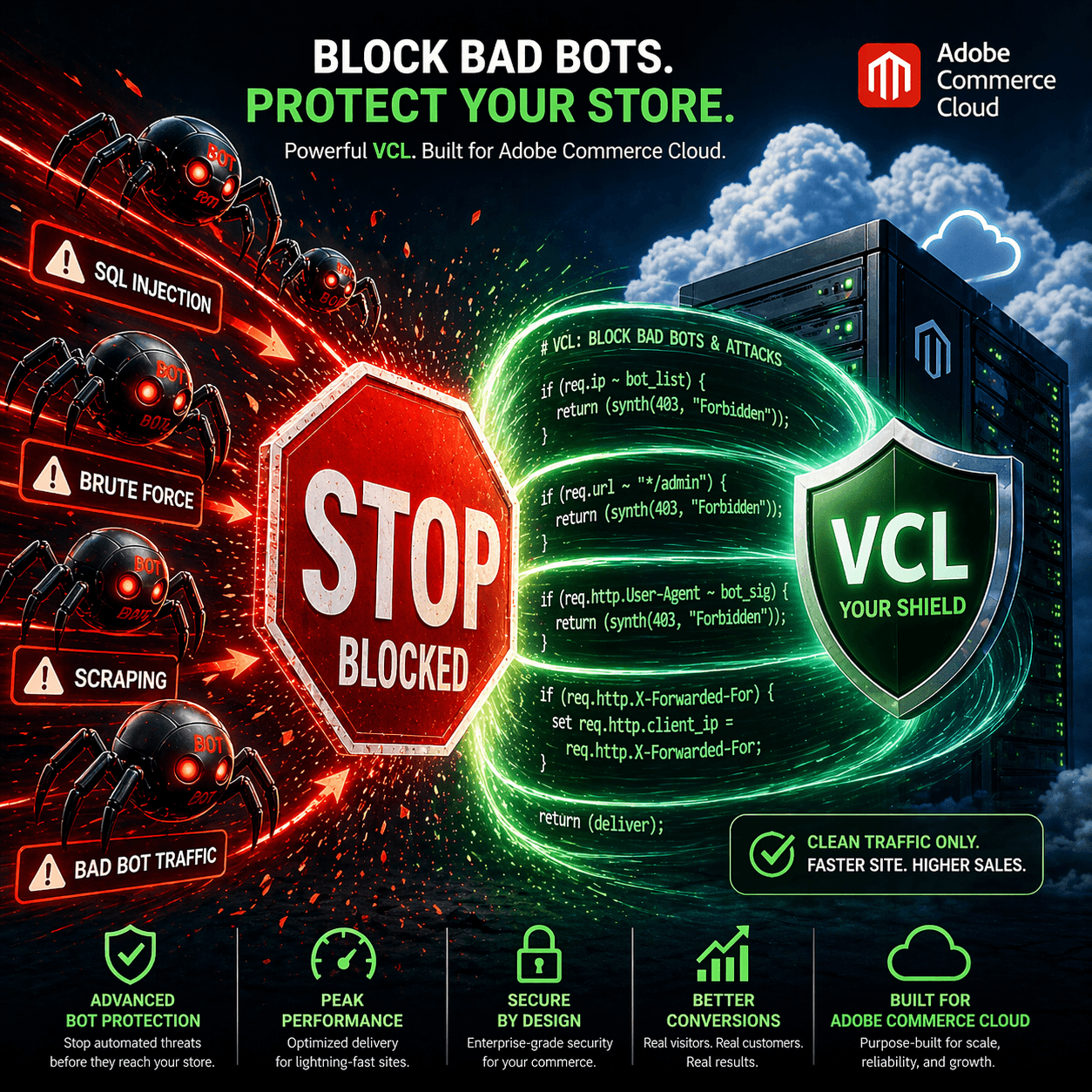
Check your Adobe Commerce Cloud access logs. Odds are, you’ll find bots like Bytespider and MJ12bot hammering your site with requests. They’re eating up your bandwidth, making your origin server work harder, and cluttering your analytics with junk traffic.
The good news? You can block them in seconds using Fastly VCL—before they even touch your origin server.
What’s the Problem?
When you check your access logs, you see requests from various crawlers and bots. Some are fine (Google, Bing), but others are problematic:
- Bytespider – Alibaba’s aggressive web crawler
- MJ12bot – Majestic’s crawler known for aggressive scanning
- Various other scrapers trying to steal product data
These bots:
- Consume unnecessary bandwidth
- Make your origin server work harder
- Scrape pricing and product information
- Clutter your analytics
The Simple Solution
Just 2 lines of VCL code:
vcl
if (req.http.User-Agent ~ "Bytespider" || req.http.User-Agent ~ "MJ12bot") {
  error 403 "Forbidden";
}
That’s it. This checks the incoming request’s User-Agent header. If it matches “Bytespider” or “MJ12bot”, Fastly blocks it with a 403 error—before it reaches your origin server.
How to Add This to Adobe Commerce Cloud
Step 1: Go to Fastly Settings
Log in to your Adobe Commerce admin panel:
- Click Stores (top left menu)
- Click Configuration
- Expand Advanced section
- Click System
- Click Full Page Cache
- Make sure Fastly is selected as your cache type
- Click Custom VCL Snippets
Step 2: Create a New Snippet
Click the Create Snippet button.
You’ll see a form with these fields:
| Field | What to Enter |
|---|---|
| Name | block_bad_bots |
| Type | recv |
| Code | See below |
Step 3: Add Your VCL Code
Paste this into the Code field:
vcl
if (req.http.User-Agent ~ "Bytespider" || req.http.User-Agent ~ "MJ12bot") {
  error 403 "Forbidden";
}
Step 4: Upload to Fastly
- Click Create button
- You should see your new snippet in the list
- Click Upload VCL to Fastly button
- Wait a few seconds for the upload to complete
- You’ll see a green message confirming success
Done! The bots are now blocked.
Block More Bots
Want to block additional bots? Just add more lines:
vcl
if (req.http.User-Agent ~ "Bytespider" ||
    req.http.User-Agent ~ "MJ12bot" ||
    req.http.User-Agent ~ "AhrefsBot" ||
    req.http.User-Agent ~ "SemrushBot") {
  error 403 "Forbidden";
}
Pro tip: If you’re not sure about the exact bot name, check your access.log to find the exact User-Agent string.
How to Verify It Works
After uploading, check if it’s working:
- Go to your Fastly dashboard
- Look for Real-Time Stats or Statistics
- Check for 403 errors – you should see an increase
- The 403s should be coming from the bot names you’re blocking
If you see 403 errors appearing, it’s working! ✓
Troubleshooting
The bot is still visiting my site
- Wait 30 seconds for the changes to fully propagate
- Go back to Custom VCL Snippets – is your snippet still there?
- Check your access log for the exact User-Agent spelling (case matters)
I don’t see any 403 errors
- The bot may not be visiting right now
- Wait a bit and check again
- Verify the snippet was uploaded successfully
I need to remove the blocking
- Go to Custom VCL Snippets
- Delete the snippet
- Click Upload VCL to Fastly
- Changes take effect in seconds
Conclusion
Blocking bad bots in Fastly is one of the easiest ways to improve your Adobe Commerce store’s performance. With just a few lines of VCL, you can reduce unwanted traffic, save bandwidth, and keep your analytics clean.
Start with the basics (Bytespider, MJ12bot), monitor your 403 errors, and add more bots as needed.
You may also like,
Where Fastly Credentials Are Stored in Adobe Commerce Cloud
Fastly : How to set basic authentication for a specific page in Magento 2
Adobe Commerce Cloud Project Structure
Thank You.