 Jigar Karangiya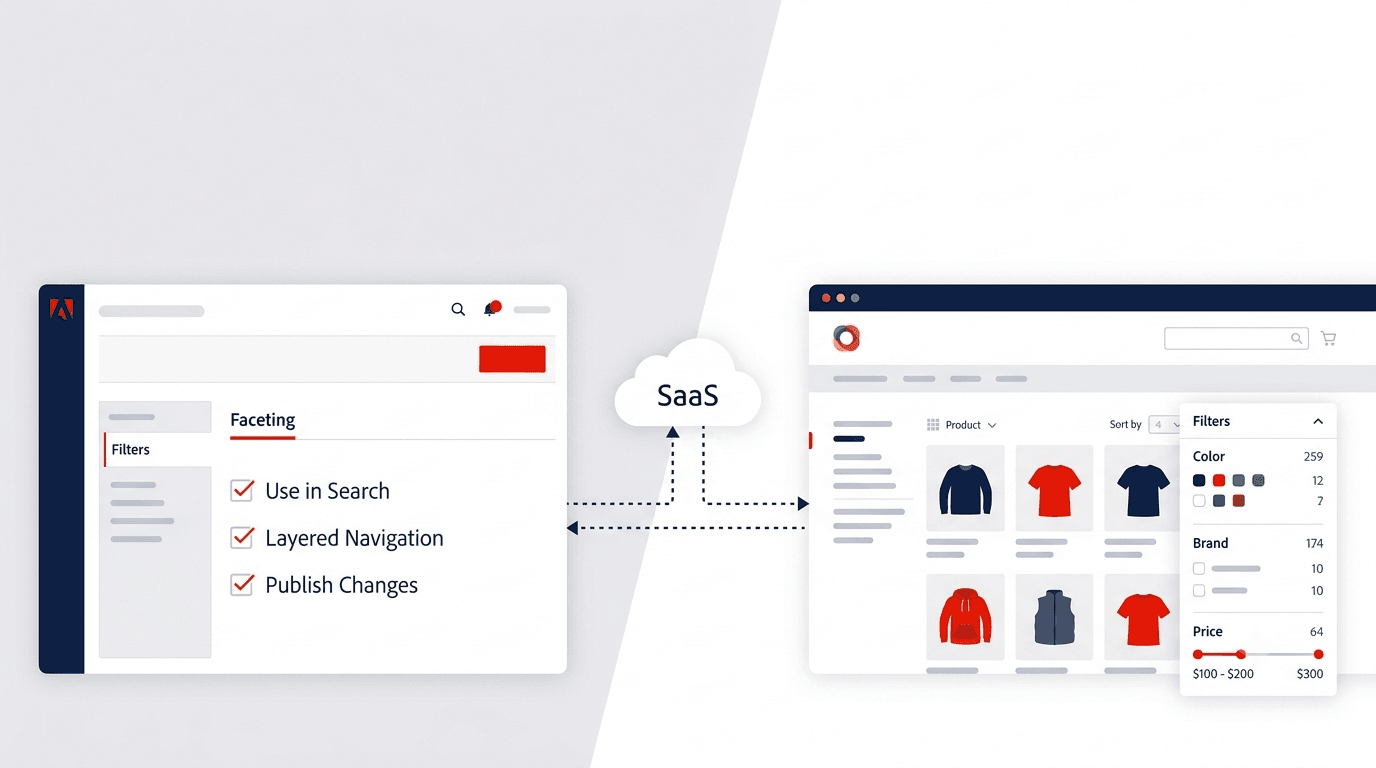
If you are running Adobe Commerce Cloud Service (ACCS) and using Live Search, storefront filters are not managed through the classic layered navigation block. Instead, you configure Live Search Facets in the Admin. Facets are filterable product attributes that appear in the storefront Filters panel when shoppers browse categories or search results.
This tutorial walks through the full process: preparing product attributes, adding facets, publishing changes, and verifying filters on the storefront.
What you need before you start
- Adobe Commerce 2.4.4+ with Live Search installed and configured
- Catalog Service syncing your catalog data to Live Search SaaS
- Admin access to your Commerce instance
- Products assigned to anchor categories (categories with Anchor = Yes)
Note
Standard layered navigation and Live Search facets are different systems. If Live Search is enabled, use facets – not the legacy Stores > Configuration > Catalog > Layered Navigation path alone.
Step 1: Configure product attributes
Before an attribute appears in the Faceting tab, it must meet Live Search requirements. This is the step you have already completed.
Go to the attribute
- In Admin, go to Stores > Attributes > Product
- Open the attribute you want to use as a filter (for example, Color, Material, or Brand)
Set the correct input type
Under Attribute Properties, the Catalog Input Type for Store Owner must be one of:
| Input Type | Supported |
|---|---|
| Yes/No | Yes |
| Dropdown | Yes |
| Multiple Select | Yes |
| Price | Yes |
| Visual Swatch | Yes (widget only) |
| Text Swatch | Yes (widget only) |
| Text Field | No |
| Text Area | No |
Set storefront properties
Under Storefront Properties, configure:
| Setting | Required Value |
|---|---|
| Use in Search | Yes |
| Use in Layered Navigation | Filterable (with results) |
| Use in Search Results Layered Navigation | Yes |
Why these matter:
- Use in Search – without this, the attribute cannot be used in search-based filtering
- Filterable (with results) – only shows filter values that have matching products (recommended)
- Use in Search Results Layered Navigation – makes the attribute eligible as a Live Search facet
Save and refresh cache
- Click Save Attribute
- When prompted, refresh the cache
After saving, the attribute should appear in the Add facets list under Marketing > SEO & Search > Live Search.
Tip
If an attribute still does not appear, double-check Use in Search = Yes. When that is set to No, the Use in Search Results Layered Navigation field is hidden entirely.
Step 2: Ensure the category is an anchor
Facets display on category pages only when the category is configured as an anchor.
- Go to Catalog > Categories
- Select your target category
- Expand Display Settings
- Set Anchor to
Yes - Click Save
This tells Commerce to show filterable attributes on that category page.
Step 3: Add Live Search Facets
Now that your attributes are configured, add them as facets.
- Go to Marketing > SEO & Search > Live Search
- Open the Faceting tab
- Click Add facets
- In the Faceting attributes list, find your attribute
- Use the Search box to filter by attribute name if the list is long
- Click Add next to the attribute
The attribute moves to the Dynamic Facets list, and the Publish changes button becomes active.
Attributes that cannot be facets
Stock status (quantity_and_stock_status) cannot be added as a facet. Use Manage out-of-stock products in Live Search settings instead.
Step 4: Customize facet properties (optional)
After adding a facet, you can fine-tune how it appears.
- In the facet list, click More (…) on the row
- Click Edit
- Adjust:
| Property | Description | Default |
|---|---|---|
| Label | Display name on storefront (from attribute label for Commerce storefronts) | Attribute label |
| Sort Type | Alphabetical for Commerce storefronts; Count available for headless only | Alphabetical |
| Max Value | Max number of filter values shown (0-100) | 8 |
- Click Save
Pin important facets
For filters you want always visible (for example, Brand or Price):
- Click the gray pin icon next to the facet
- The facet moves to Pinned Facets and stays at the top of the Filters list
- Drag pinned facets to reorder them (headless / PLP widget)
Step 5: Publish changes
Changes are not live until you publish.
- Click Publish changes (top of the Faceting workspace)
- Wait for catalog synchronization with Live Search
Timeline: Facets typically appear on the storefront after the next catalog sync. Allow up to 2 hours in most cases.
If filters still do not appear after 2 hours, verify catalog export:
bin/magento saas:resync --feed=products
bin/magento saas:resync --feed=productAttributes
On ACCS, run these via your deployment pipeline or SSH as appropriate for your environment.
Step 6: Verify on the storefront
- Open your storefront in a browser
- Navigate to a category where the attribute applies
- Confirm the Filters panel shows your new facet
- Select a filter value and verify products update correctly
- Test on the search results page as well
What shoppers should see
- A Filters sidebar (or panel) on category and search pages
- Your configured attributes listed as filter options
- Product counts next to each value (when products match)
- Results updating as filters are applied
Understanding facet types
Live Search uses several facet types behind the scenes:
| Type | Behavior |
|---|---|
| Pinned Facets | Always shown at the top of the Filters list |
| Dynamic Facets | AI-selected based on the current product set and query |
| Popular Facets | Attributes most commonly present in results |
| Price Facets | Price range filters; intervals configured under Live Search Settings |
For consistent filter placement, pin your most important attributes (Brand, Color, Size, Price).
Troubleshooting
Attribute not showing in Add facets list
- Confirm Use in Search = Yes
- Confirm Use in Layered Navigation = Filterable (with results)
- Confirm Use in Search Results Layered Navigation = Yes
- Confirm input type is supported (Dropdown, Multi-select, Yes/No, Price, or Swatch)
- Save attribute and refresh cache
Facet added but not on storefront
- Did you click Publish changes?
- Wait up to 2 hours for catalog sync
- Run
saas:resyncfor products and productAttributes feeds - Confirm category Anchor = Yes
- Confirm products in that category have values for the attribute
Filter shows but returns no products
- Verify products have the attribute value assigned
- Run a full reindex:
bin/magento indexer:reindex - Check that the attribute is in the correct attribute set for those products
Price filter not working correctly
- Ensure Sales Tax and Catalog Prices settings use the same tax display (both Excluding or both Including Tax)
- Configure price intervals under Marketing > SEO & Search > Live Search > Settings
Timeout errors after adding many dynamic facets
- Pin all facets instead of relying on dynamic facets to reduce query load
Quick reference checklist
| Step | Admin Path | Setting |
|---|---|---|
| 1 | Stores > Attributes > Product | Input type: Dropdown / Multi-select / Yes/No / Price |
| 2 | Stores > Attributes > Product > Storefront Properties | Use in Search = Yes |
| 3 | Stores > Attributes > Product > Storefront Properties | Use in Layered Navigation = Filterable (with results) |
| 4 | Stores > Attributes > Product > Storefront Properties | Use in Search Results Layered Navigation = Yes |
| 5 | Catalog > Categories > Display Settings | Anchor = Yes |
| 6 | Marketing > SEO & Search > Live Search > Faceting | Add facets |
| 7 | Marketing > SEO & Search > Live Search > Faceting | Publish changes |
| 8 | Storefront | Verify filters appear |
Summary
Enabling storefront filters in ACCS with Live Search is a two-part process:
- Prepare attributes – set the three storefront properties so attributes qualify as filterable
- Activate facets – add them in the Live Search Faceting workspace and publish
Once published and synced, shoppers see those attributes as filters on category and search pages – a faster, AI-enhanced alternative to classic layered navigation.
Official Adobe documentation:
You may also like …
Adobe Commerce Optimizer: modernize your storefront without replatforming