 Jigar Karangiya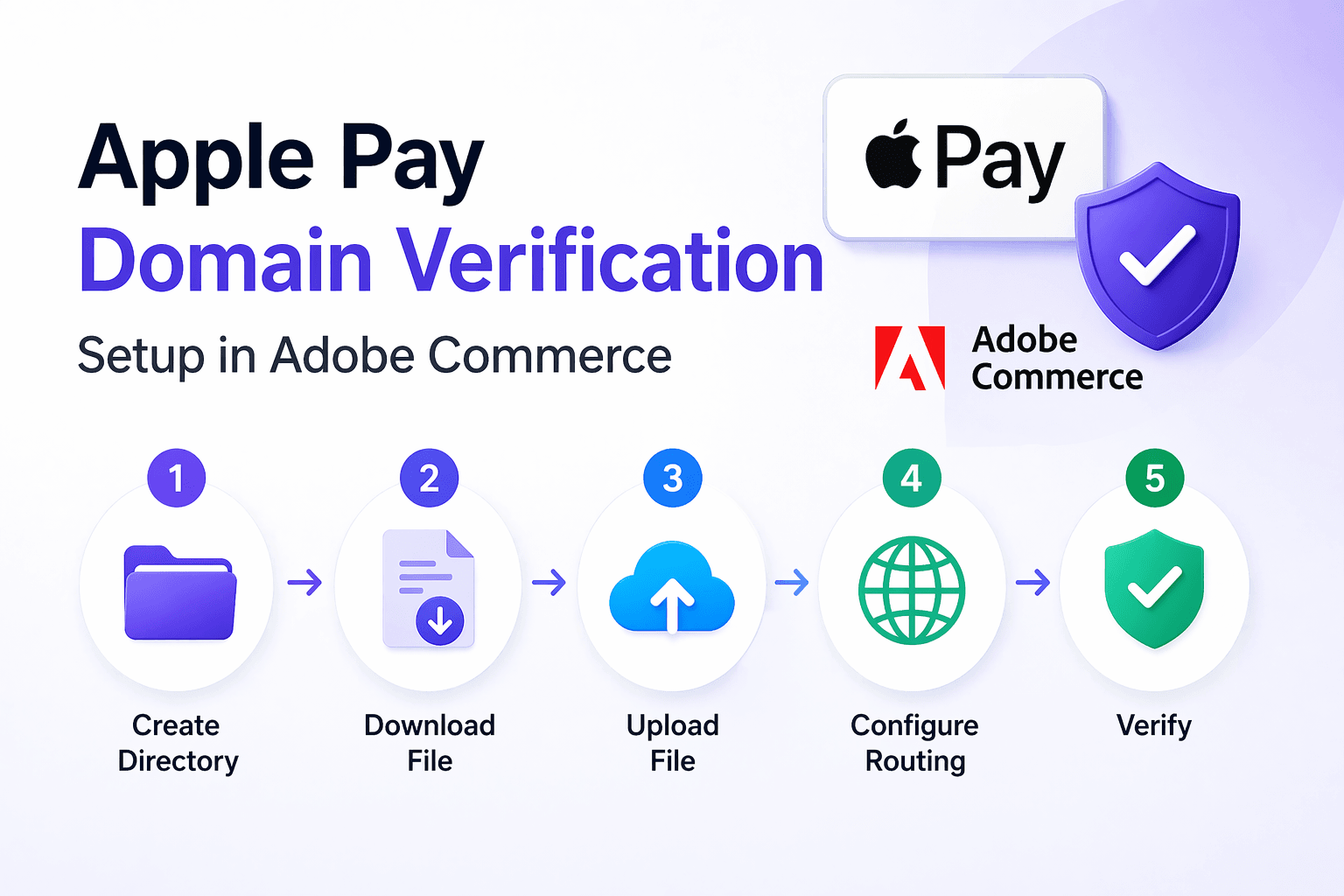
Learn how to resolve Apple Pay domain verification failures in Adobe Commerce on Managed Services when the root directory is read-only. We’ll walk through two proven solutions using configuration files or Fastly VCL snippets.
Understanding the Problem
If you’re running Adobe Commerce on Managed Services and trying to implement Apple Pay, you may have encountered a frustrating issue: the domain verification fails. This typically happens because Apple Pay requires verification files to be placed at the root level (specifically in a .well-known directory), but on Managed Services, the root directory is read-only for security reasons.
Apple’s requirements are strict—they don’t allow 301 redirects for verification, which eliminates a common workaround. This creates a challenge: how do you place a file where the system won’t let you write?
Affected Environments
- Product: Adobe Commerce on Managed Services
- Versions: 2.4.x
- Environments: Production & Staging
Why This Happens
Adobe Commerce on Managed Services restricts write access to the root directory for security purposes. This is actually a best practice—it prevents accidental (or malicious) file modifications at the system level. However, it creates a conflict with Apple Pay’s verification process, which expects files to be accessible at /.well-known/apple-developer-merchantid-domain-association.txt.
The solution? Host the verification file in a writable directory and configure routing to serve it from the expected location. Think of it as creating a tunnel that directs requests to where your file actually lives.
The Two Solutions
1. Using .magento.app.yaml Configuration
This is the recommended approach for most teams. It’s clean, version-controlled, and integrated into your deployment pipeline.
Step-by-step:
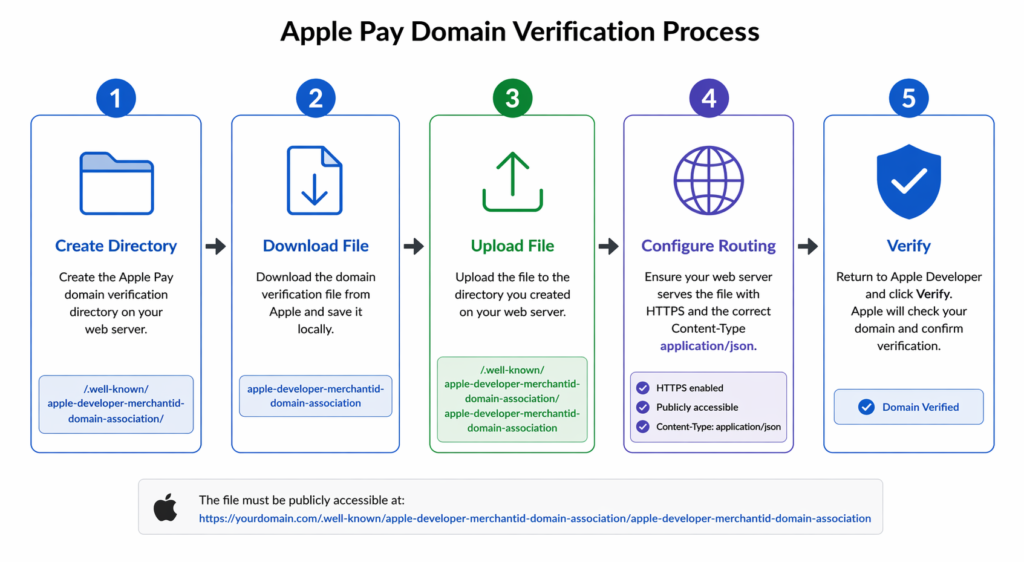
- Create a
.well-knowndirectory under/pub/media/ - Download the
apple-developer-merchantid-domain-association.txtfile from your Apple Pay merchant dashboard - Upload the file to
/pub/media/.well-known/ - Update your
.magento.app.yamlfile with the configuration below - Push the changes to your environment
Add to .magento.app.yaml
"/.well-known":
  root: "pub/media/.well-known"
  allow: true
  scripts: false
  expires: 1y
What This Does
root: Points requests for /.well-known to your actual file location. allow: Enables access. scripts: Disables script execution (security). expires: Sets browser cache to 1 year for optimization.
2. Using Fastly VCL Snippets
Use this method if you prefer to manage routing through your CDN configuration, or if you’re already heavily customizing Fastly rules.
Step-by-step:
- Log in to the Magento Admin Panel
- Navigate to: Stores → Configuration → Advanced → System
- Expand Full Page Cache , then go to Fastly Configuration → Custom VCL Snippets
- Click Create and enter the VCL rule below
- Use a friendly name like
Apple_domain_association - Set Type to
recvand Priority to100 - Click Create , then click Upload Fastly VCL to apply
VCL Snippet
if (req.url.path == "/.well-known/apple-app-site-association") {
  set req.url = "/media/.well-known/apple-app-site-association";
}
Configuration Details
Snippet Name: Apple_domain_association
Type: recv (receive)
Priority: 100 (executed early in the request lifecycle)
Verification
After implementing either solution, verify that your domain is correctly configured by accessing the file in your browser:
Test URL
https://your-domain.com/.well-known/apple-developer-merchantid-domain-association.txt
You should see the contents of your verification file. If you get a 404, double-check:
- The file is uploaded to the correct directory
- The filename matches exactly (case-sensitive)
- Your configuration changes have been deployed
- Cache has been cleared in Fastly (if using VCL method)
Which Method Should You Choose?
| Factor | .magento.app.yaml | Fastly VCL |
|---|---|---|
| Ease of Setup | ⭐⭐⭐⭐⭐ | ⭐⭐⭐⭐ |
| Version Control | ✓ Git tracked | ✗ Admin UI only |
| Performance | Excellent | Excellent |
| Flexibility | Limited to routing | Full VCL control |
Recommendation: Start with the .magento.app.yaml approach. It’s simpler, more maintainable, and version-controlled. Only switch to Fastly VCL if you need additional CDN-level rules.
Common Issues & Troubleshooting
File Returns 403 Forbidden
Ensure the allow: true parameter is set in your .magento.app.yaml configuration. Without it, requests are blocked.
File Still Returns 404 After Deployment
Wait a few minutes for the deployment to fully propagate. If using Fastly, try purging the cache from the Admin panel.
Apple Pay Still Won’t Verify
Double-check that the filename matches exactly what Apple requires. Filenames are case-sensitive. Also verify you’re accessing the correct domain.
Browser Cache Issues
If you update the file, clear your browser cache or open the URL in an incognito window to see the latest version.
Key Takeaways
Remember
- Problem: Root directory is read-only on Managed Services
- Solution: Use routing to serve files from
/pub/media/.well-known/ - Method 1: Configure via
.magento.app.yaml(recommended) - Method 2: Use Fastly VCL snippets (when extra CDN control needed)
Related Documentation
- Project Structure in Commerce on Cloud Guide
- Getting Started with Custom VCL Snippets
- Web Property Configuration Guide
- Apple Pay Integration Best Practices
You may also like,
Fastly : How to set basic authentication for a specific page in Magento 2